Polytrons are microservices that can process your assets in the cloud. Whether optimizing 3D models, converting formats, composing images, or using AI to describe an image: Polytrons provide reliable outputs tailored to your creative requirements. Polytrons can perform sophisticated data processing on formats such as 2D, 3D, audio, video and more. This article explains how to locate and use Polytrons using the official Polyverse front end.
To learn how to process Polytrons with Polyverse's REST API, please visit the official Polyverse REST API Documentation.
¶ Where to Locate Polytrons
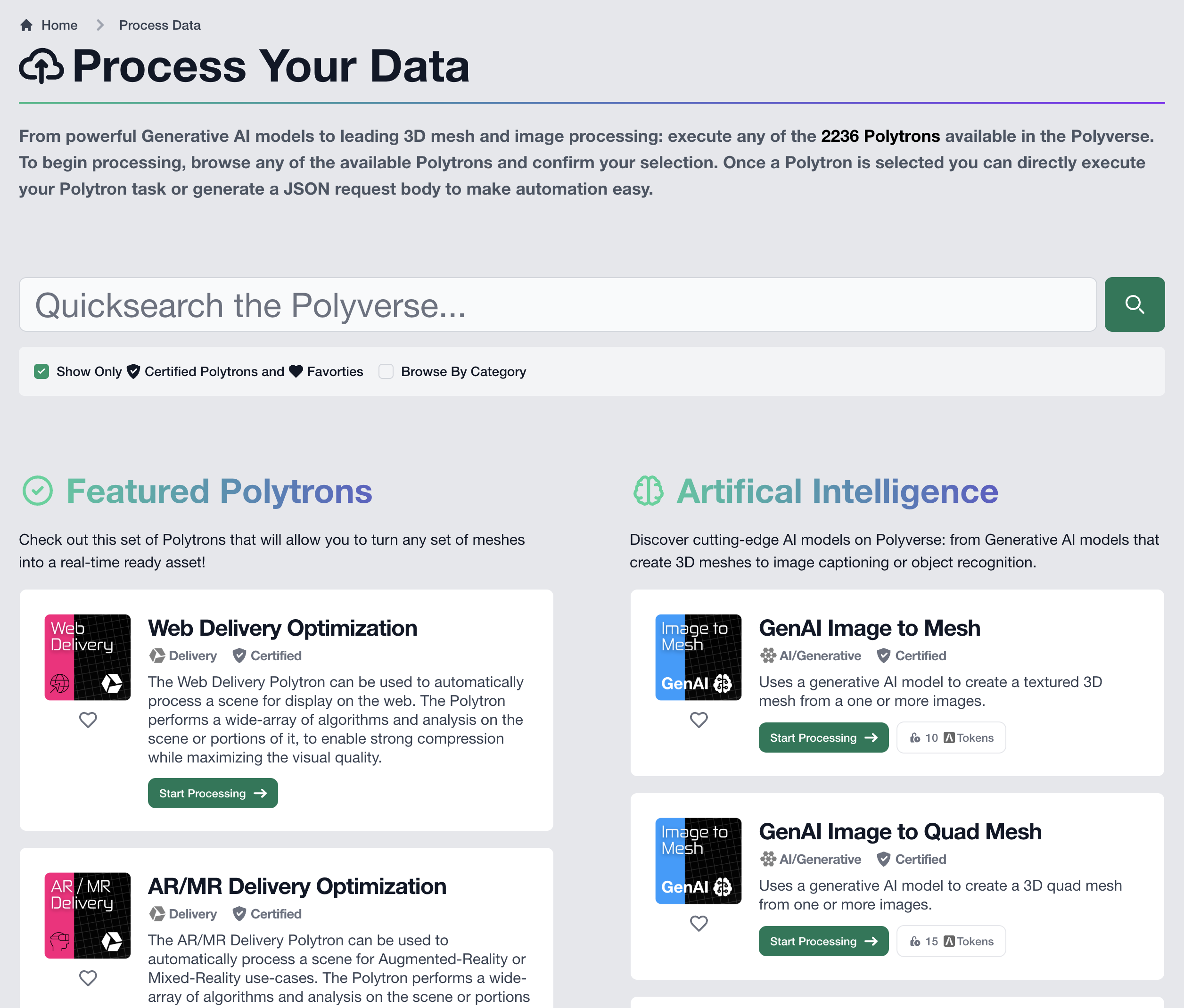
Polytrons can be found in the Process Data page under the Processing section in the sidebar. This page showcases new, popular, and featured Polytrons in the Polyverse. Use Quick Search at the top to find thousands of available Polytrons, or enable Browse By Category to explore Polytrons organized by their specific categories and functions.
By default, only certified Polytrons will appear with Quick Search. To enable search for user-created Polytrons, disable the Show Only Certified Polytrons and Favorties option.
Custom Polytrons can be created by uploading InstaMAT Packages to an Asset Library. These Polytrons can appear in Quick Search if public, or marked as a favorite when private.
¶ How to Process an Asset with a Polytron
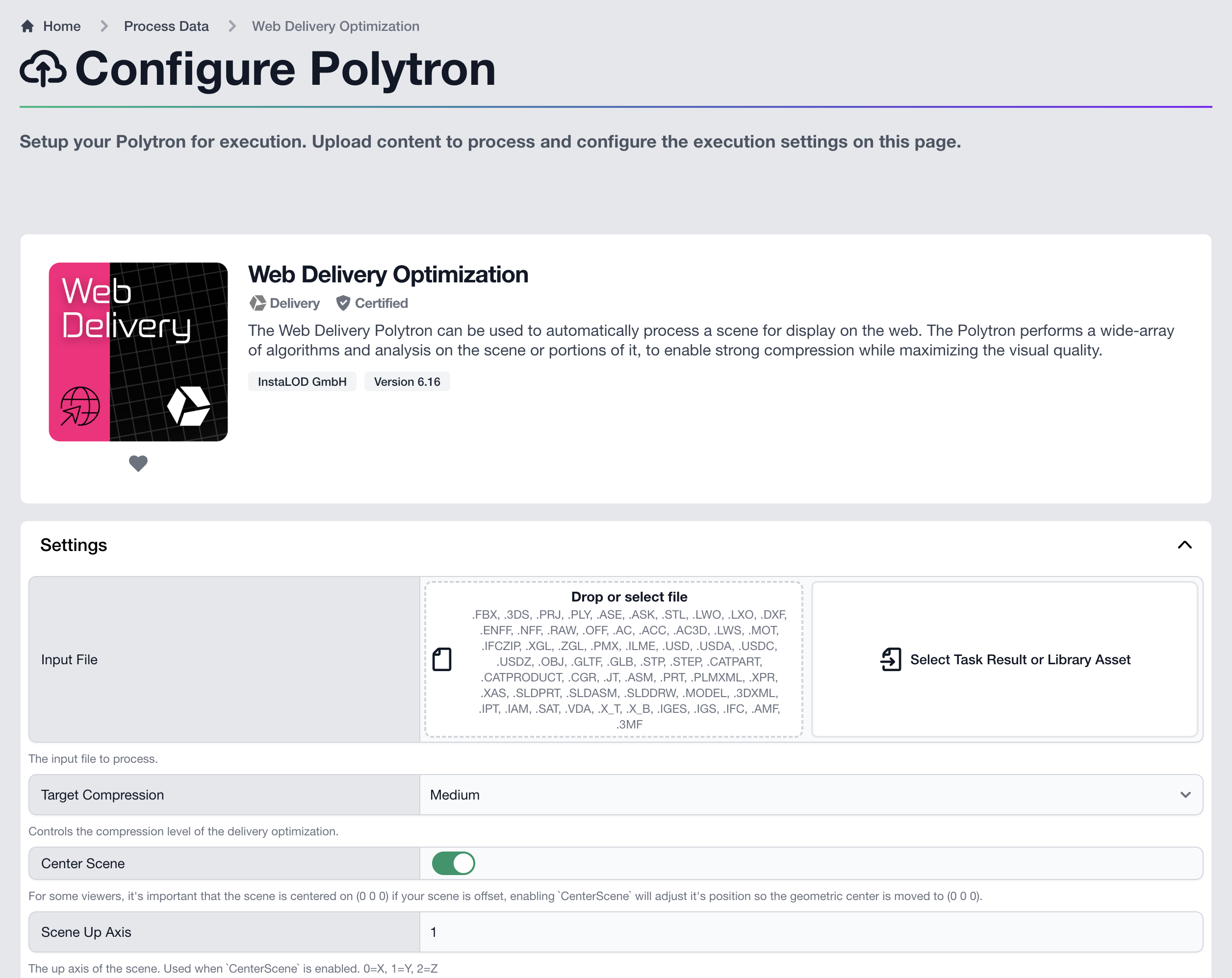
To process an asset with a Polytron, click the green Start Processing button. This opens the Polytron configuration page, where you can adjust all of its settings. Drag and drop a file for processing, or select a library asset or task result to link it directly.
Once configured, click the green button at the bottom of the page to start processing. Polyverse will automatically upload the asset from your machine, if provided locally, and begin processing it.
¶ Where to View Polytron Processing Status and Results
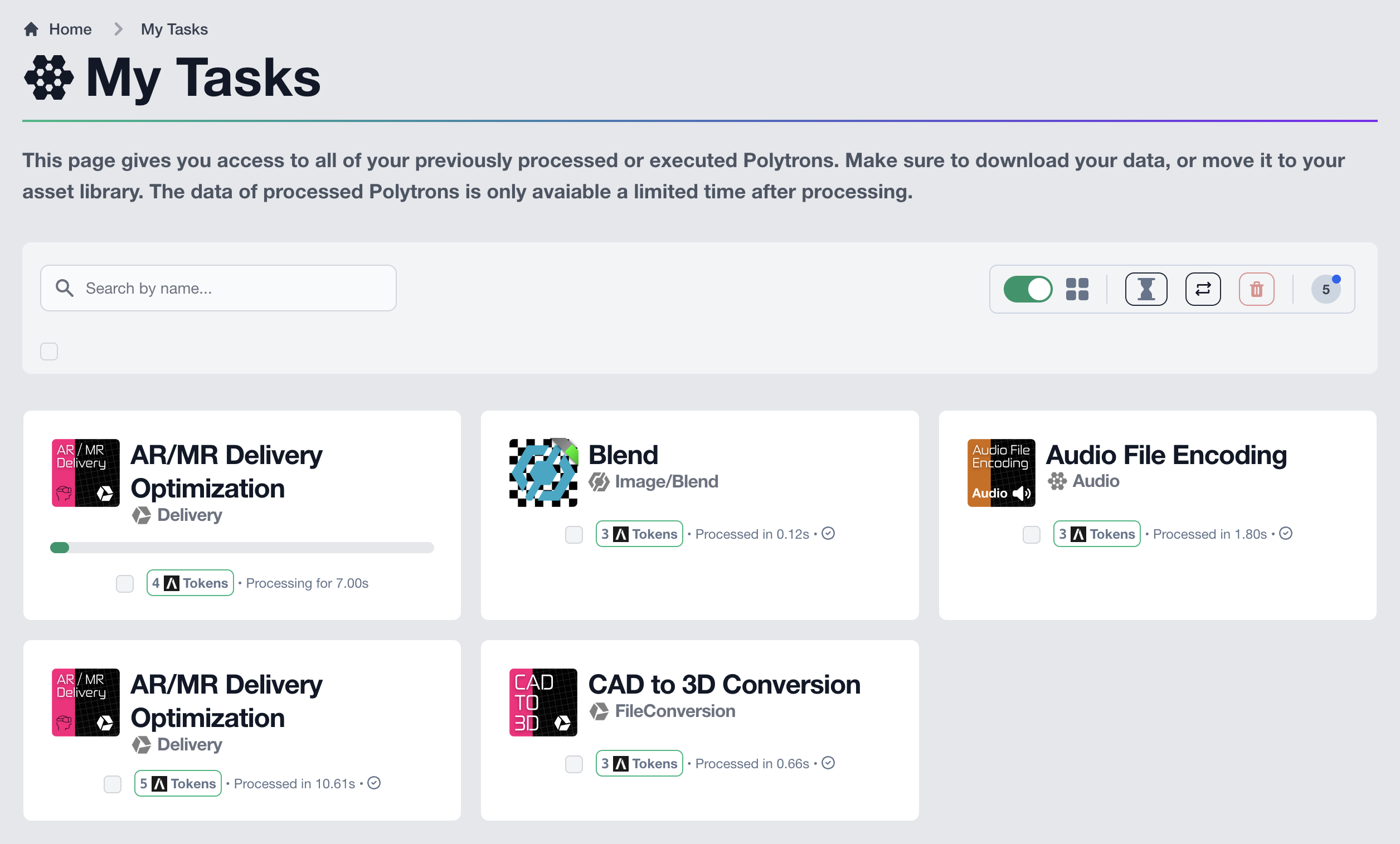
To view the status of a recently used Polytron, in the sidebar, click the My Tasks button in the Processing section.
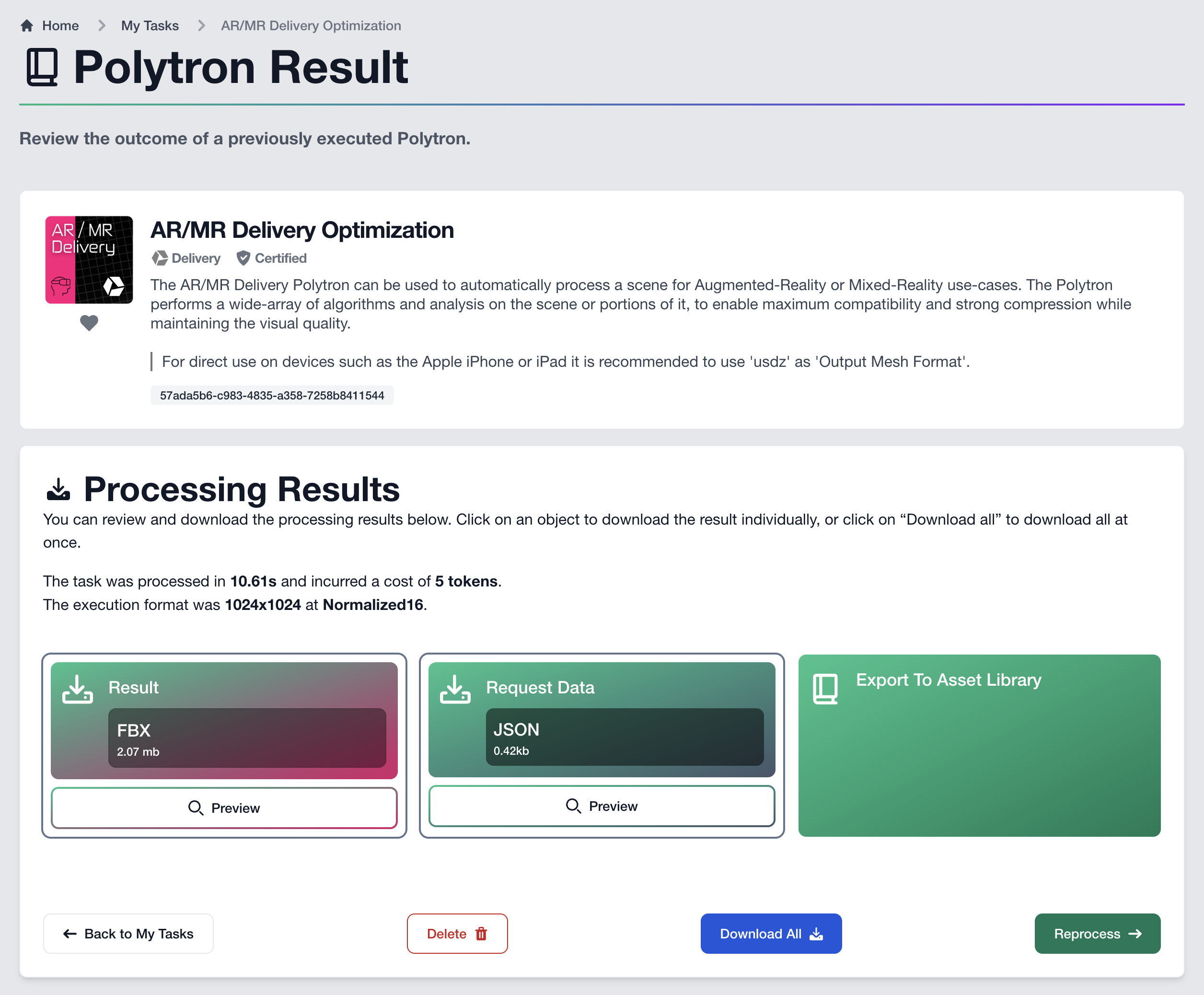
Once a Polytron has finished processing, click on it to view its results. Click the Preview buttons to view individual outputs directly in the browser. Download outputs individually, or click the blue Download All button at the bottom of the page.
Polytron results can be exported directly to an Asset Library by clicking the Export To Asset Library button.
If you wish to process a Polytron again, click the green Reprocess button at the bottom of the page.
¶ Adding a Polytron as a Favorite
 To mark a Polytron as a favorite, click the icon underneath the Polytron's icon. The
 Favorites page can be found in the sidebar in the Processing section.