Project Deliveries in Abstract Polverse provides a comprehensive asset review system that streamlines the iterative process of creating digital assets.
¶ Submitting a Task for Review
To submit a task for review, open a task from either the Timeline or Board views to reveal its information and scroll down on the right to the Submit Review section.
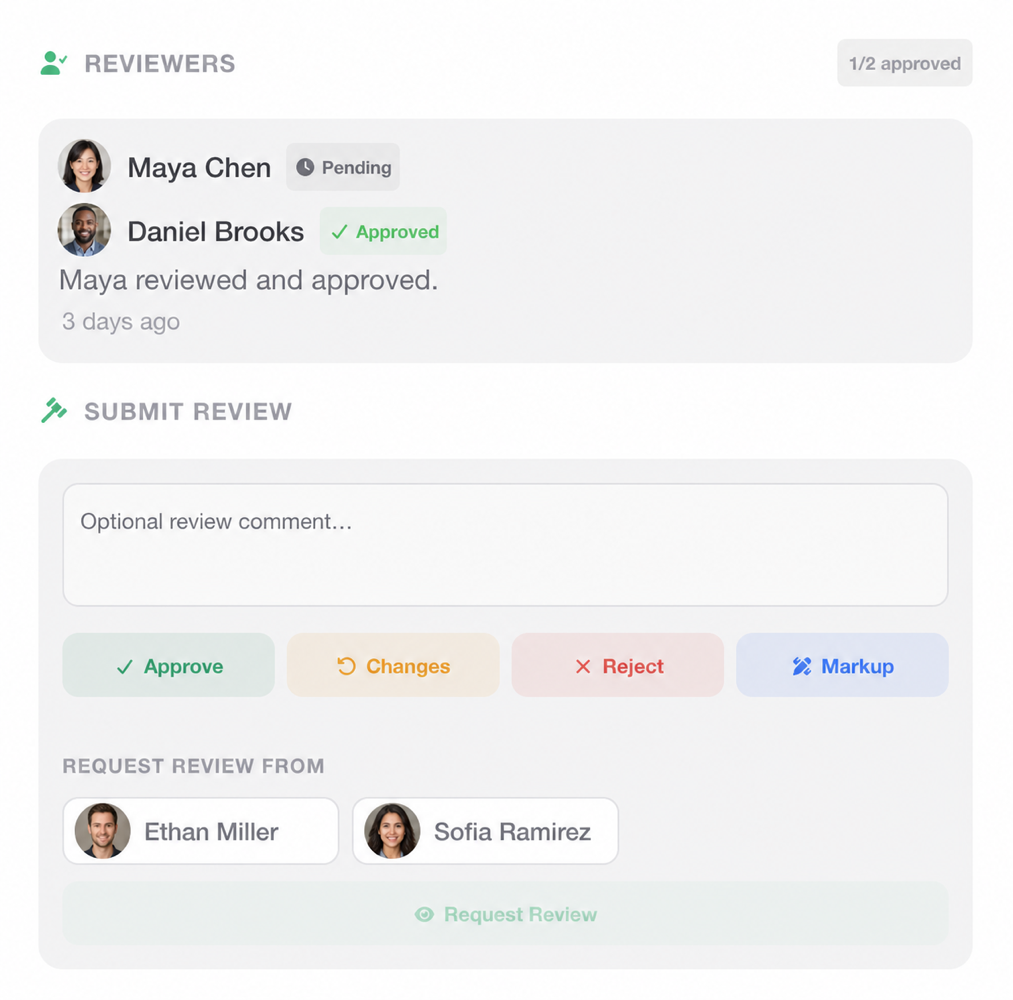 Team members with review permissions for the task’s asset library will appear in the
 Request Review From section. Click one or more names, then click Request Review to submit the request.
Reviewers will receive a notification or an email (depending on their notification settings) letting them know the asset is ready for review.
The task will automatically set its status to In Review.
Reviewers can leave feedback with an optional comment, then submit it using the Approve, Changes, or Reject buttons. The review discussion appears at the top of the Reviewers section, with each reviewer’s status shown next to their name. To the right of the Reviewers heading, an indicator shows how many reviewers (out of the total) have approved the asset.
Once all reviewers have approved the asset, the task’s status will automatically be set to Approved.
¶ Markup Annotations
Project Deliveries lets reviewers annotate portions of an asset with dedicated comments for feedback. In the Submit Review section, click the blue Markup button. Depending on the asset type, the markup feature offers various shapes for highlighting areas of the asset. For 3D assets, use the Area shape to highlight a portion of a mesh’s surface by drawing a shape on the surface of the model. Use the Volume shape to highlight part of an object by drawing a shape that encloses that area of the model.
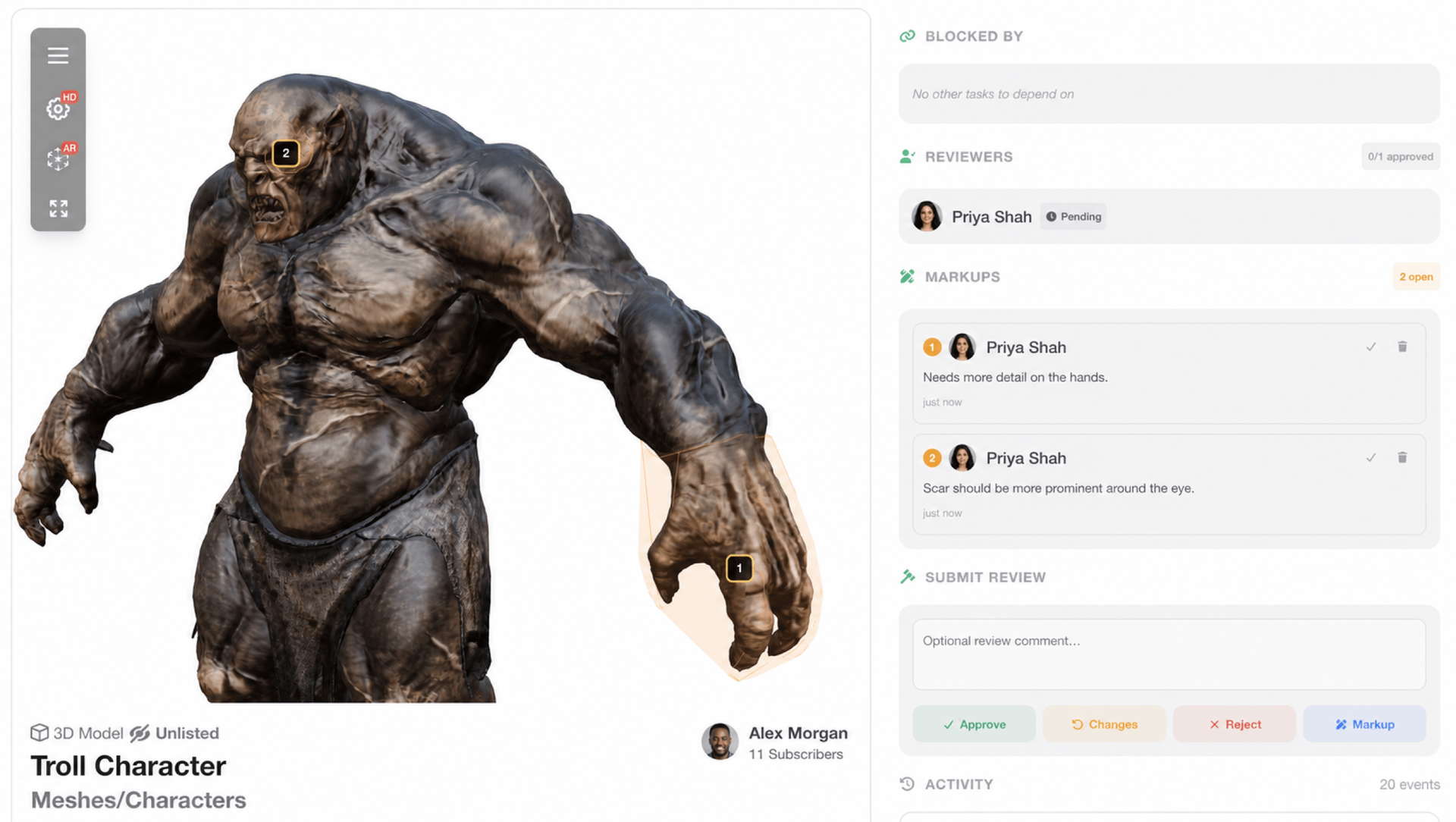
Markups can be marked as resolved or deleted with the options in the top right corner of each annotation listed in the Markups section of the right sidebar.
¶ Uploading a New Asset Version
When an asset is ready for updated changes, you can upload a new version to Polyverse. To upload a new asset version, locate the asset in the asset library and navigate to its edit page using the button below the asset viewer.
 At the bottom of the asset’s edit page, click
 Upload New Version, then upload the updated asset. You can then request reviews using the steps above.
¶ You’re Almost There!
Now that you’re familiar with creating tasks and reviewing assets, let’s take a look at creating project milestones.
- Milestones ➡️