 Private asset libraries are only visible to you and the team members assigned to them. Team members are assigned a set of access permissions that allow them to read, edit, and publish assets. This article details more information about private Polyverse asset libraries.
¶ Creating a Private Asset Library
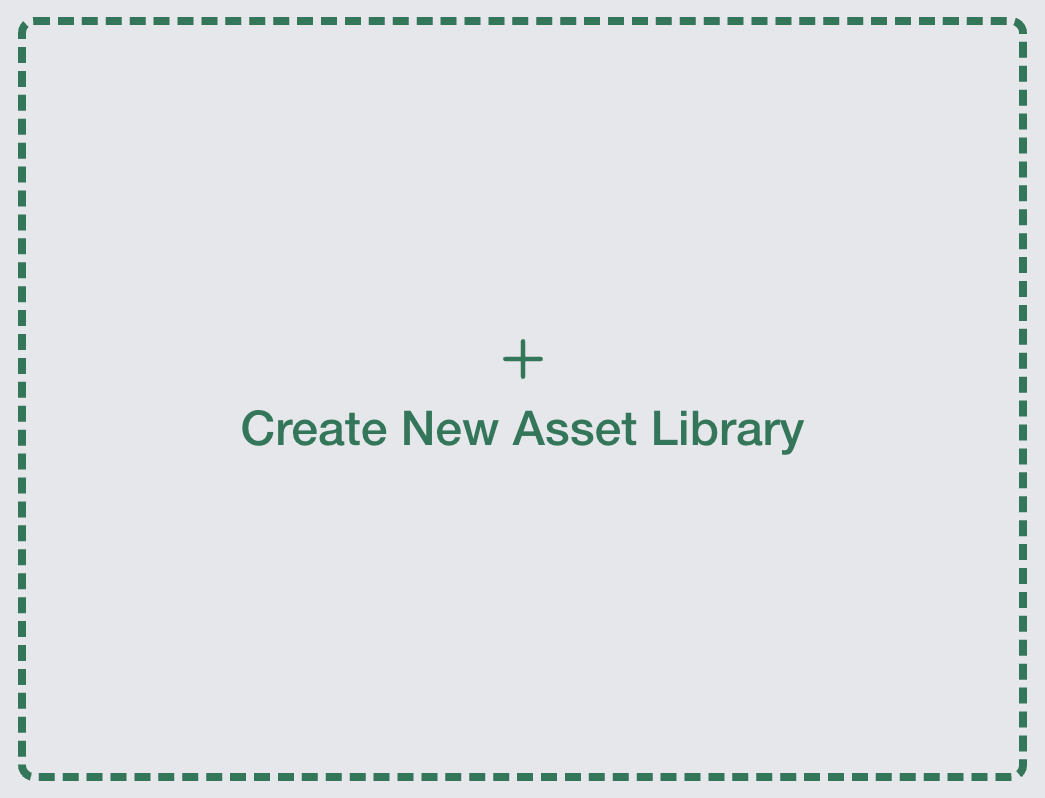 To create a private Polyverse asset library, in the sidebar, click on the
 Asset Libraries link under the Asset Management heading. This will take you to the main Asset Library page. From here, click Create New Asset Library to make a new one.
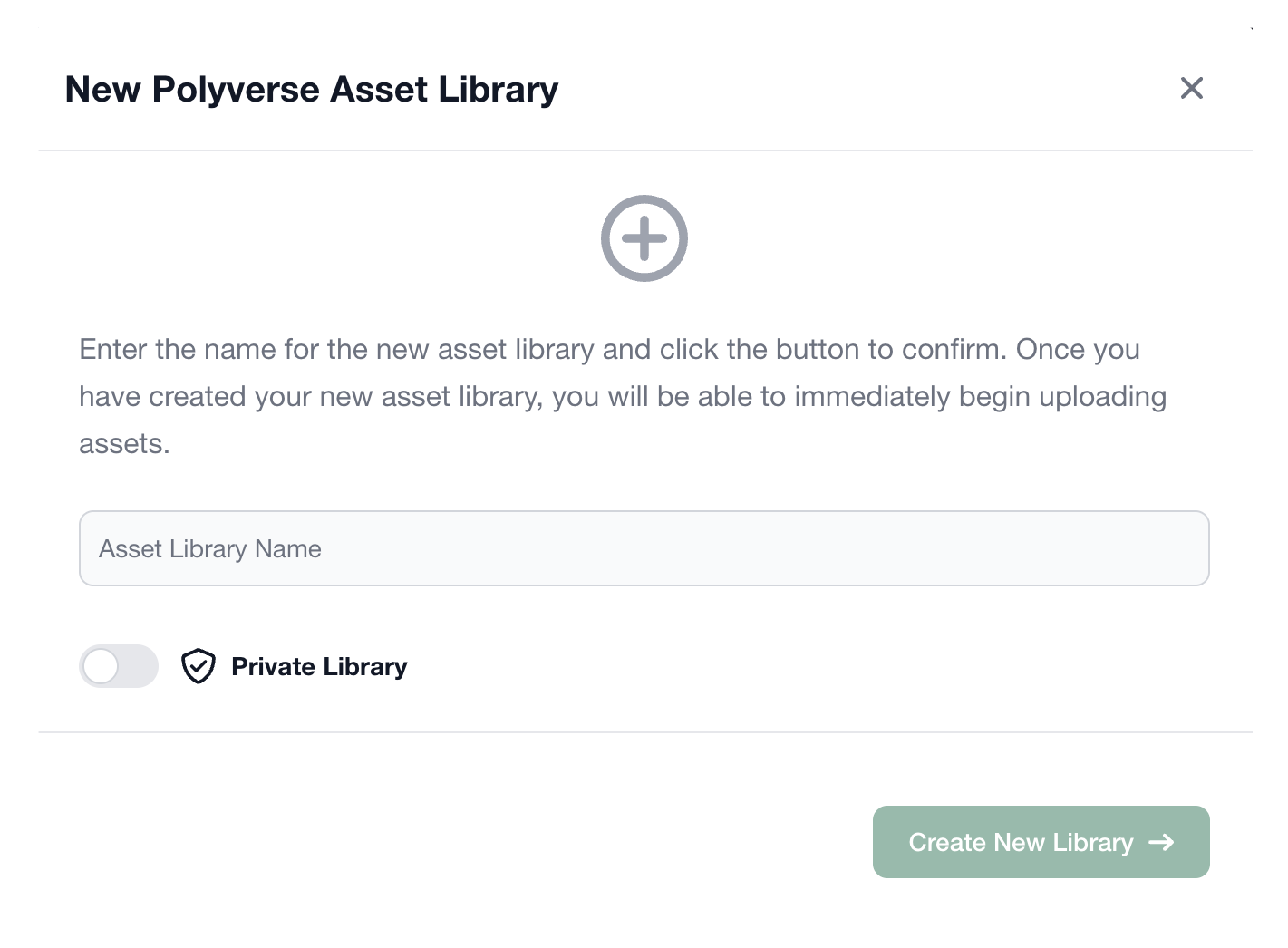 Polyverse will present a dialog asking for the new library’s name and to set whether it’s a public or private library. Enable to
 Private Library toggle to make the library private, then click the green Create New Library button.
¶ Managing Team Members
To manage an asset library's team members and access permissions, click the Edit Library button located in the top right corner of the library information area.
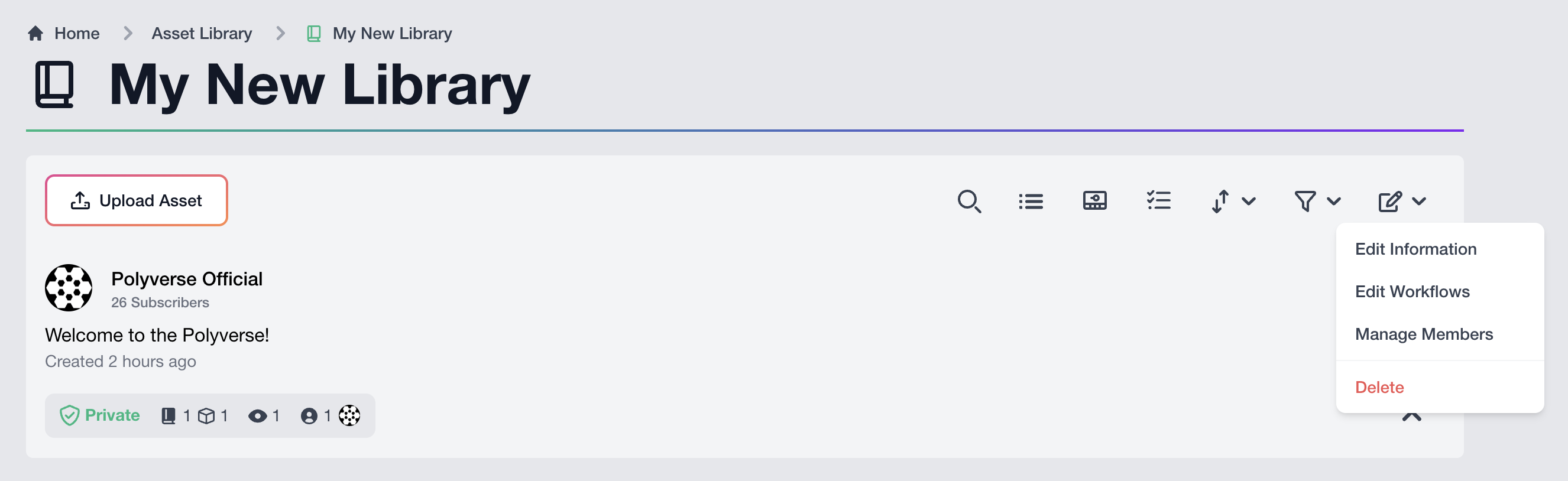
From the dropdown, select Manage Members.

To invite a user, enter their email, choose their access permissions from the New User Permissions dropdown, and click the blue Invite button.
¶ Sharing Assets in Private Asset Libraries
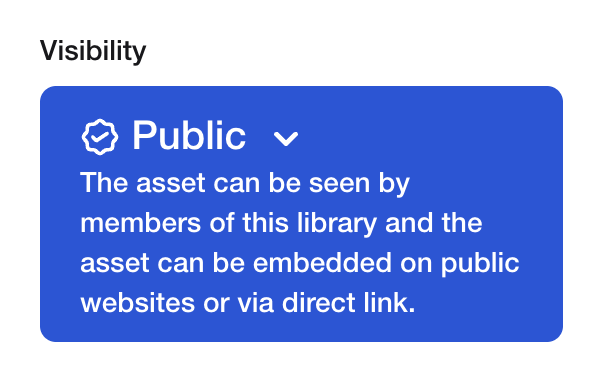 Published assets with their Visibility setting set to Public are visible to anyone with a link. This lets users view the asset without needing access to the rest of the library. In other words, only the linked asset is visible to people outside the library; the rest of the library remains unavailable.
An asset's Visibility can be set from the asset's Edit page.