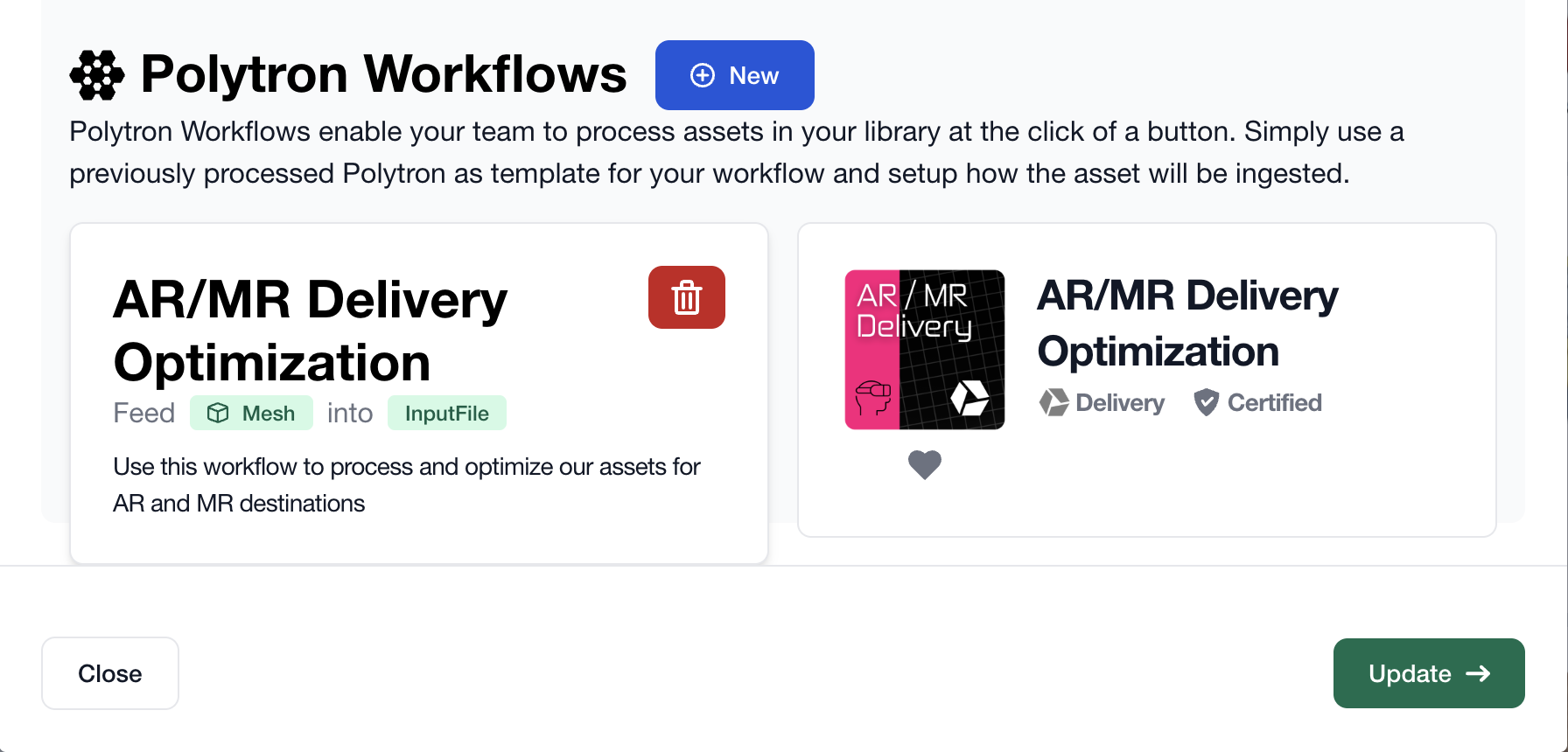
Polytron Workflows make it easy to process library assets in the cloud. Polytrons are microservices that create and process 2D, 3D, audio, and video assets. You can assign them to an Asset Library, making them instantly accessible to any asset within it. This article covers how to create and use Polytron Workflows in an Asset Library.
¶ Creating a Polytron Workflow
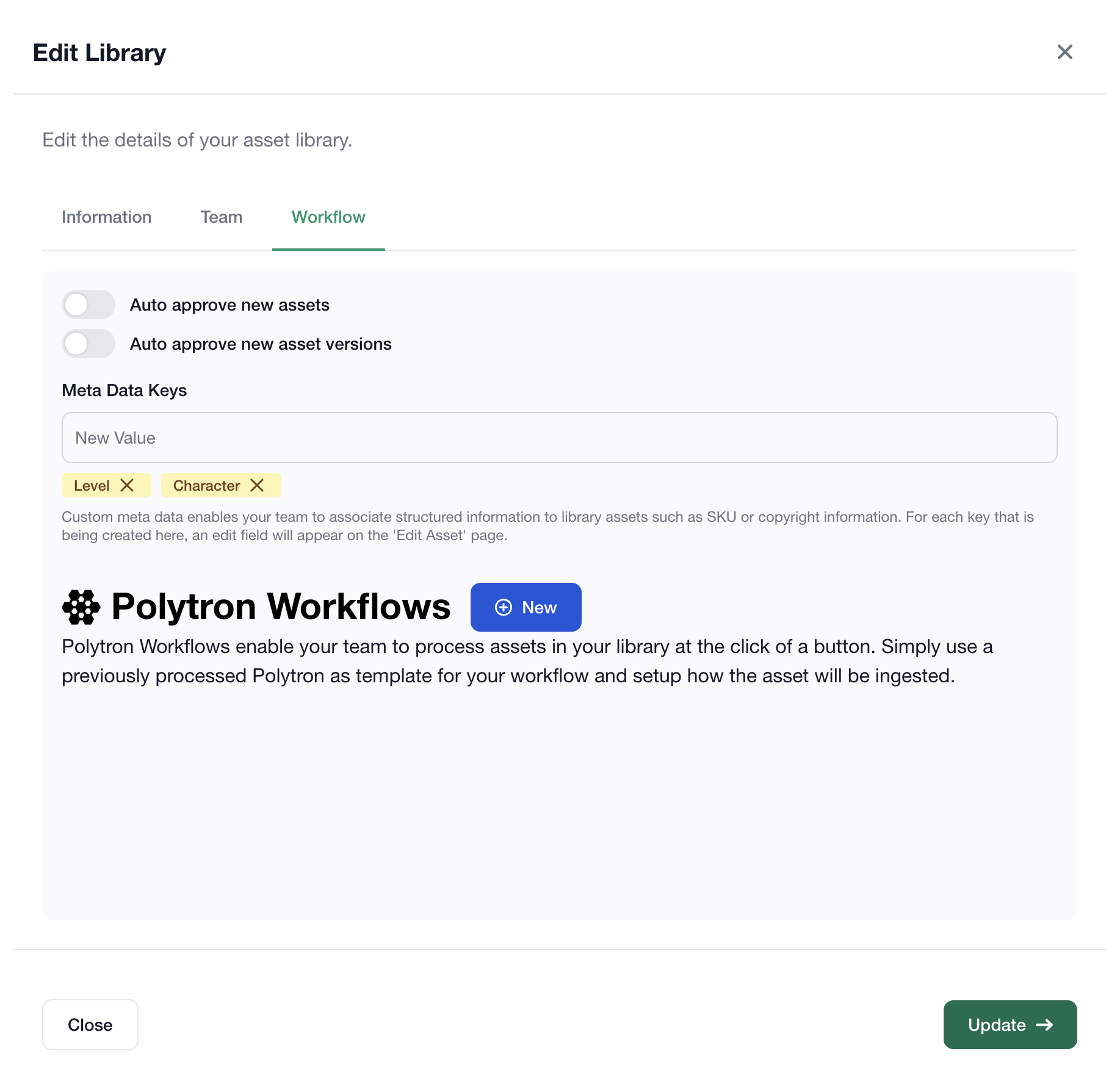
Polytron Workflows are assigned to an Asset Library through the Edit Library dialog. To create a Polyton Workflow:
- Navigate to the Asset Library you would like to assign the Polytron Workflow to.
- Click the
Edit Librarybutton located in the top right corner of the library information area. - From the dropdown, select
Edit Workflows. - In the
Polytron Workflowssection, click the blueNewbutton.
- The
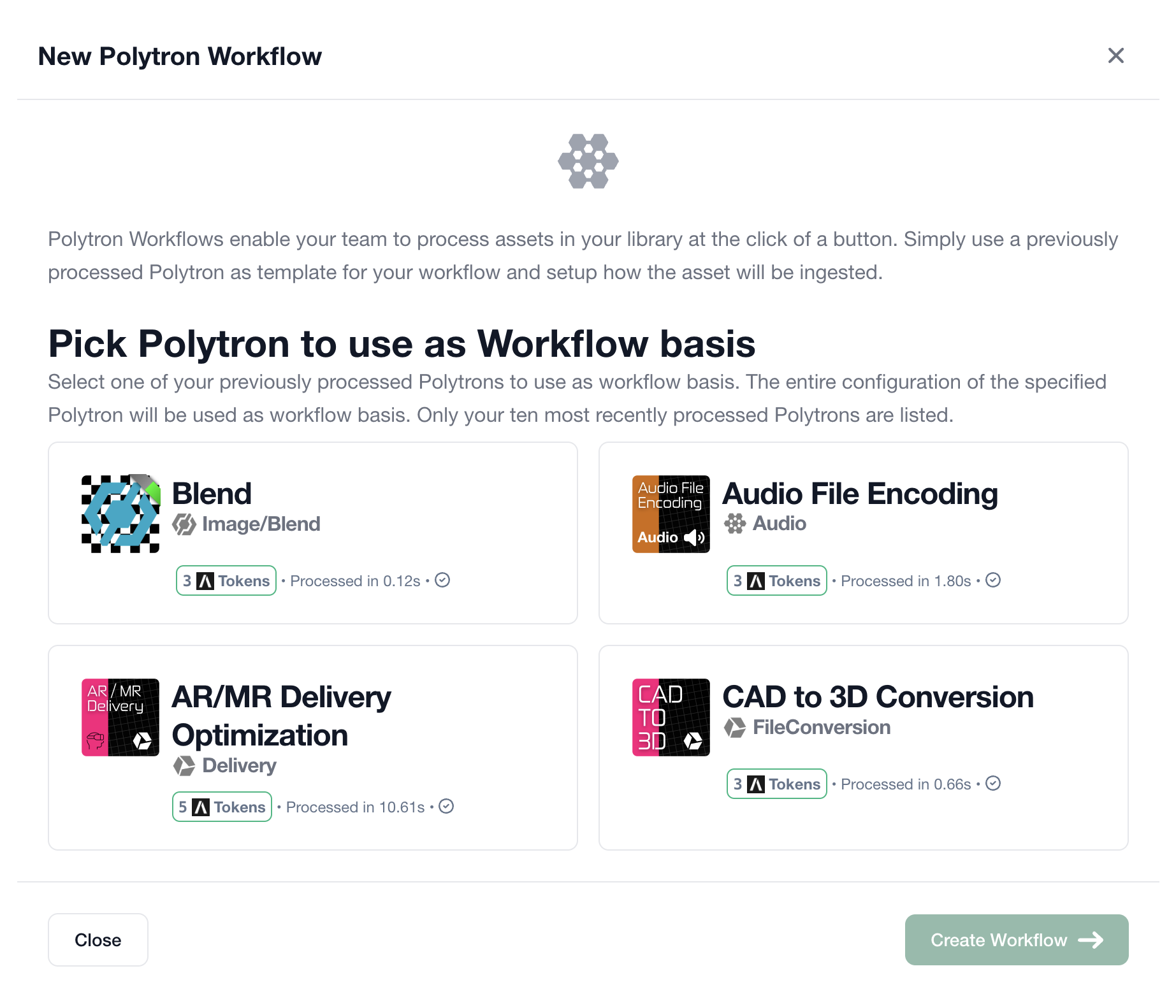
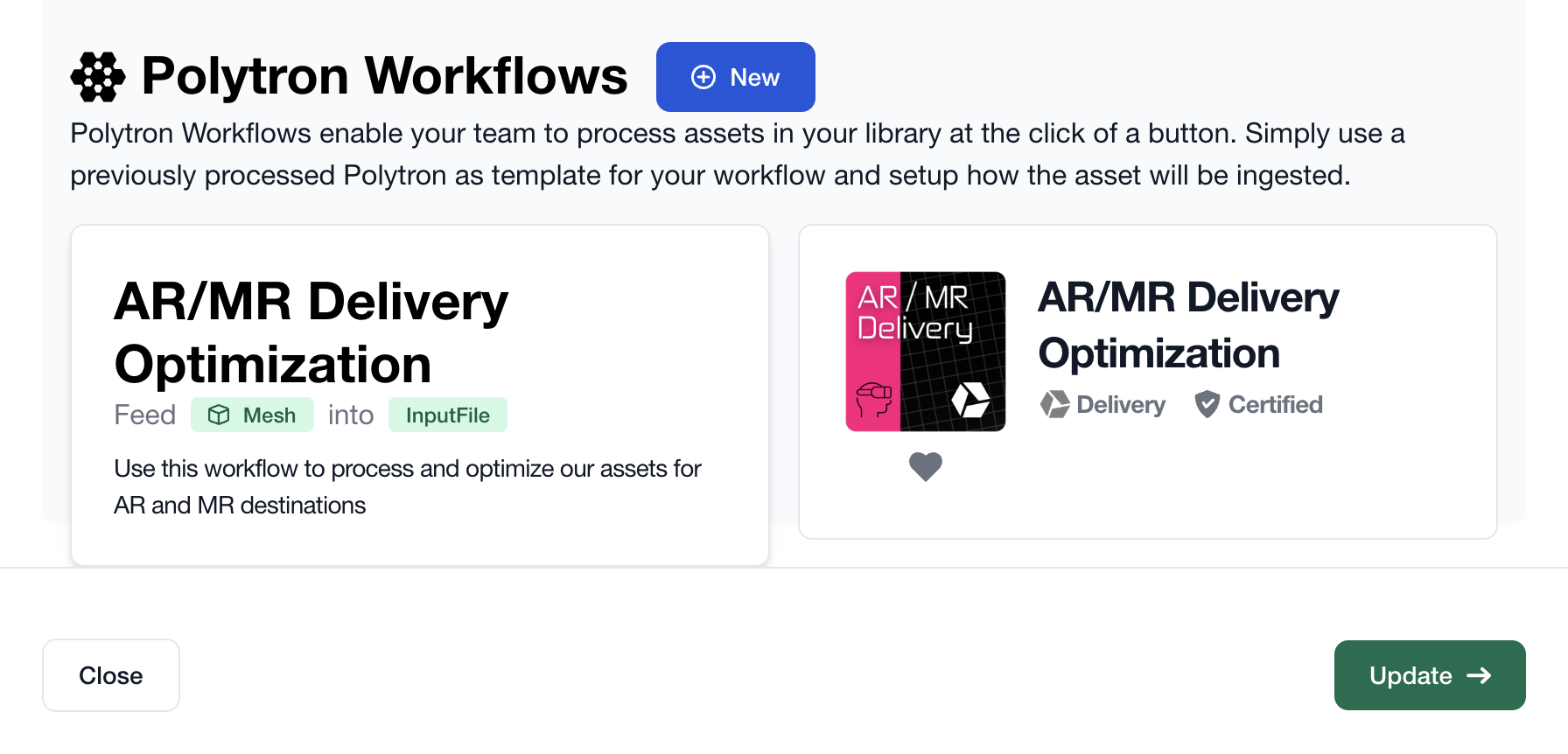
New Polytron Workflowdialog then displays your most recently used Polytrons. Select a Polytron to assign it to the workflow.
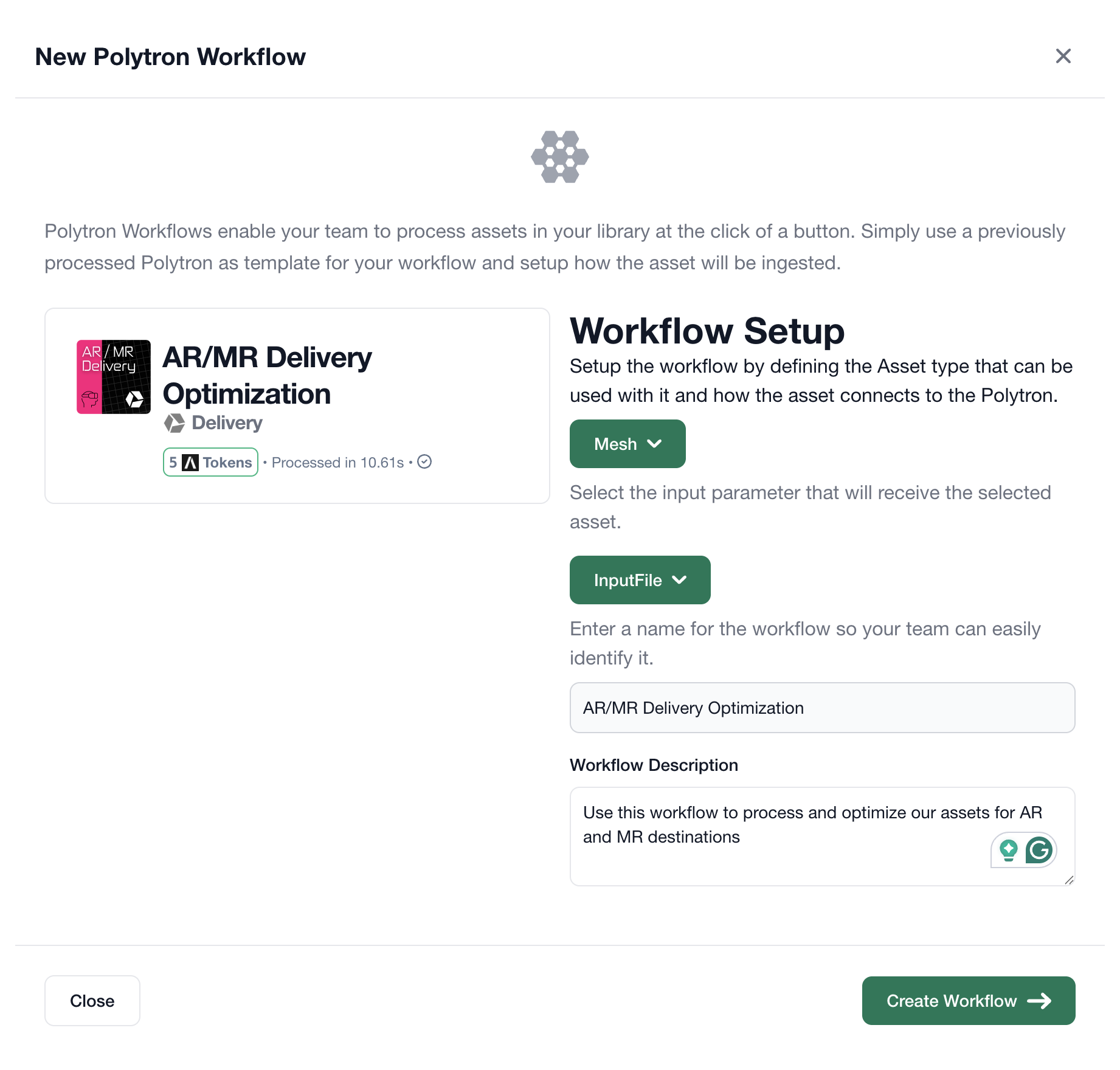
- Polyverse will then ask which type of asset to use as the workflow input and which specific input to use for that asset. In addition, you can enter a custom name and description for the workflow. Once complete, click the green
Create Workflowbutton.
Once added, your new workflow will appear at the bottom of the Edit Library dialog.
¶ Using a Polytron Workflow
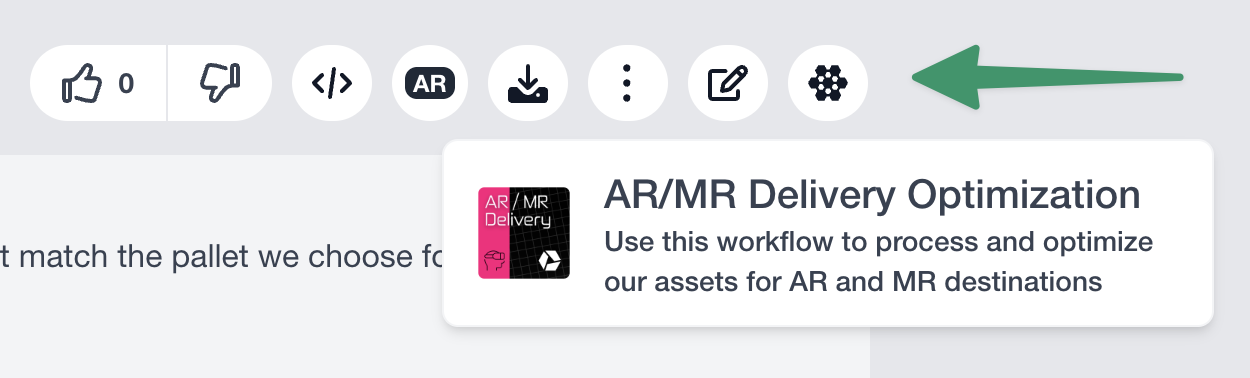
Once a Polytron Workflow has been added to an Asset Library, it can be accessed from the Polytron Workflow button below the asset viewer on an asset page. Open an asset and click the Polyverse icon below the asset viewer to open the Polytron Workflow dropdown menu. Select an available workflow to instantly supply that asset as an input for the chosen Polytron.
¶ Deleting a Polytron Workflow
To delete a Polytron Workflow:
- Navigate to the Asset Library that contains the Polytron Workflow you would like to delete.
- Click the
Edit Librarybutton located in the top right corner of the library information area. - From the dropdown, select
Edit Workflows. - Hover over the workflow to delete, then click the red delete button to delete it.
- Make sure to click the green
Updatebutton to save the changes to the library.